Access GitHub repositories, issues, pull requests, code search, branches, commits, and more.
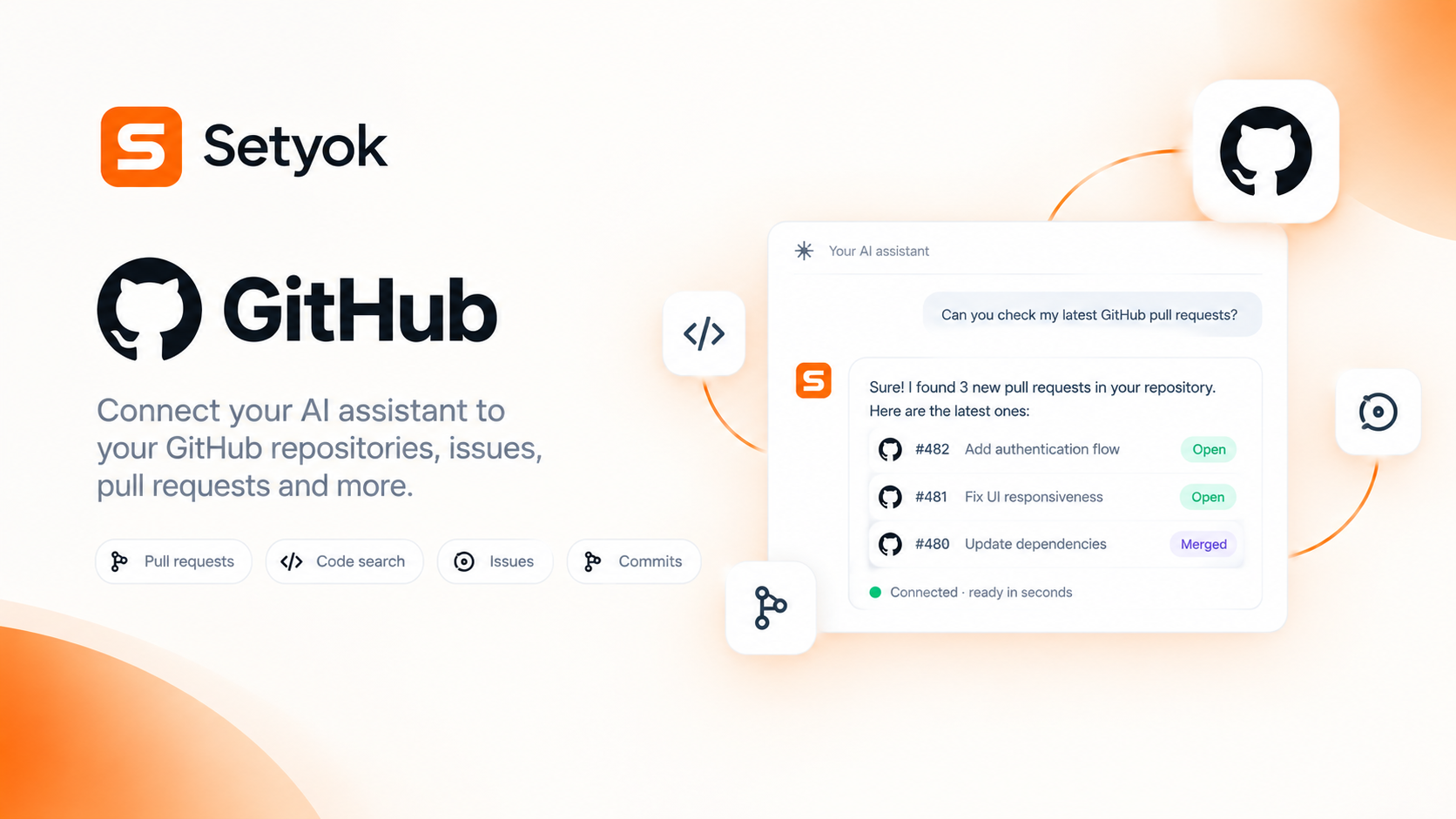
Add GitHub to your AI assistant with one click. No code, no setup.
Or connect manually with any MCP-compatible assistant
https://setyok.com/github/mcp
What it can do
Get My Profile
Get the authenticated GitHub user profile (login, name, email, avatar, public repo count, followers)
List Repositories
List repositories for the authenticated user
Search Repositories
Search GitHub repositories by keyword
Get File
Get the contents of a file in a repository
Create or Update File
Create or update a file in a repository. To update an existing file, the current file SHA must be provided.
List Branches
List branches in a repository
Create Branch
Create a new branch in a repository
List Commits
List commits in a repository
Get Commit
Get details of a specific commit including files changed
List Issues
List issues in a repository
Get Issue
Get details of a specific issue including body and comments count
Create Issue
Create a new issue in a repository
Add Issue Comment
Add a comment to an issue
List Pull Requests
List pull requests in a repository
Get Pull Request
Get details of a specific pull request including body, reviewers, and merge status
Create Pull Request
Create a new pull request
Merge Pull Request
Merge a pull request
Search Code
Search code across GitHub repositories
Connect GitHub to Claude, ChatGPT, and any AI assistant
The GitHub MCP tool gives your AI assistant direct, secure access to GitHub. No copy-pasting, no switching tabs. Connect once and your AI can read repos, write code, open pull requests, create issues, search commits, and more, all from a single conversation.
This is the fastest way to add GitHub to Claude, ChatGPT, Cursor, Copilot, or any MCP-compatible AI. Works with Claude.ai integrations, Claude Desktop, Open WebUI, and any tool that supports the Model Context Protocol (MCP).
What your AI can do with GitHub
Once connected, your AI assistant can take real action on your GitHub account:
- Read and write files: get file contents, create or update files in any branch
- Manage repositories: list all your repos, search by keyword, get full repo details
- Work with branches: list branches, create new branches from any ref or SHA
- Explore commits: list commit history, read individual commit details and diffs
- Handle issues: list open and closed issues, read issue details, create new issues, post comments
- Review pull requests: list PRs by state, get full PR details including reviewers and checks, create new PRs, merge with your preferred strategy (merge, squash, rebase)
- Search code: search across all of GitHub or within a specific repo using advanced query syntax
- Access your profile: get your authenticated user info, avatar, and account details
Why use an AI with GitHub?
Developers who connect GitHub to their AI spend less time context-switching and more time shipping. Instead of reading docs, running CLI commands, and copying output into your chat, the AI does it all directly.
Common workflows people run:
- "Review all open PRs in my repo and summarize what's ready to merge"
- "Find all TODOs in this codebase and create issues for each one"
- "List commits from the last 7 days and write a changelog"
- "Create a branch, make this change, and open a pull request"
- "Search for all uses of this deprecated function across my org"
- "Triage incoming issues and add labels based on their content"
How it works
The GitHub MCP server connects through Setyok's hosted infrastructure using the same secure connection flow you use to connect any third-party app to GitHub. Your credentials are encrypted at rest and the AI model never sees them directly. Rate limits, permissions, and repository access are all governed by your own GitHub account settings. You can revoke access at any time from your GitHub account under Settings → Applications.
Compatible AI assistants
This MCP server works with any assistant that supports the Model Context Protocol:
- Claude (claude.ai integrations and Claude Desktop)
- ChatGPT with custom connectors
- Microsoft Copilot Studio
- Open WebUI
- Cursor, Windsurf, and other AI-powered IDEs
- Any custom agent built with the MCP standard
Getting started
- Click Connect your GitHub account above to authorize via OAuth.
- Copy your endpoint URL, it's unique to your Setyok account.
- Add it to your AI assistant under Settings → Integrations or MCP servers.
- Start a new conversation and ask your AI to list your repos or open a PR.
New Setyok accounts start with 100 free credits. GitHub tool calls are free (0 credits per call) during the current period.
Add GitHub to your AI assistant with one click. No code, no setup.
Or connect manually with any MCP-compatible assistant
https://setyok.com/github/mcp
3
1
Part of
Other tools
Weather
Get current weather data for any city.
YouTube
Search YouTube, manage your channel videos, read comments, and get video analytics directly from your AI assistant.
Video Edit
Edit and transform existing videos with a text prompt. Change styles, apply effects, or reinterpret a scene using FLUX Video Edit.
Media Editor
Edit, convert, and transform audio and video files using FFmpeg. Stitch clips, overlay tracks, crop, cut, extract frames, detect silences, and more.
Google Ads
Manage Google Ads campaigns, get performance reports, and optimize your ad spend with AI.
FAQ
Use cases
- Ask your AI to review open pull requests and summarize the changes
- Let your AI create issues or comment on bugs directly from your chat
- Search across your repos for code, files, or commits without leaving your assistant
- Have your AI read and edit files, then open a pull request with the changes
- Get a daily digest of new issues or PRs assigned to you
- Ask your AI to find all TODOs or fixme comments across a repository
- Let your AI triage and label incoming issues based on their content
- Have your AI generate a changelog by summarizing recent commits
- Ask your AI to check if a branch is up to date before merging
- Let your AI find which commit introduced a bug by searching the history
- Ask your AI to list all open PRs waiting for your review
- Have your AI clone and read a public repo to answer questions about it
- Let your AI propose a fix for a failing test and push it as a commit
- Ask your AI to compare two branches and explain the differences
- Have your AI monitor a repo for new releases and summarize what changed
Keywords