Generate videos from text prompts or reference images using Google Veo 3.1. Choose resolution and aspect ratio, or animate from a first or last frame.
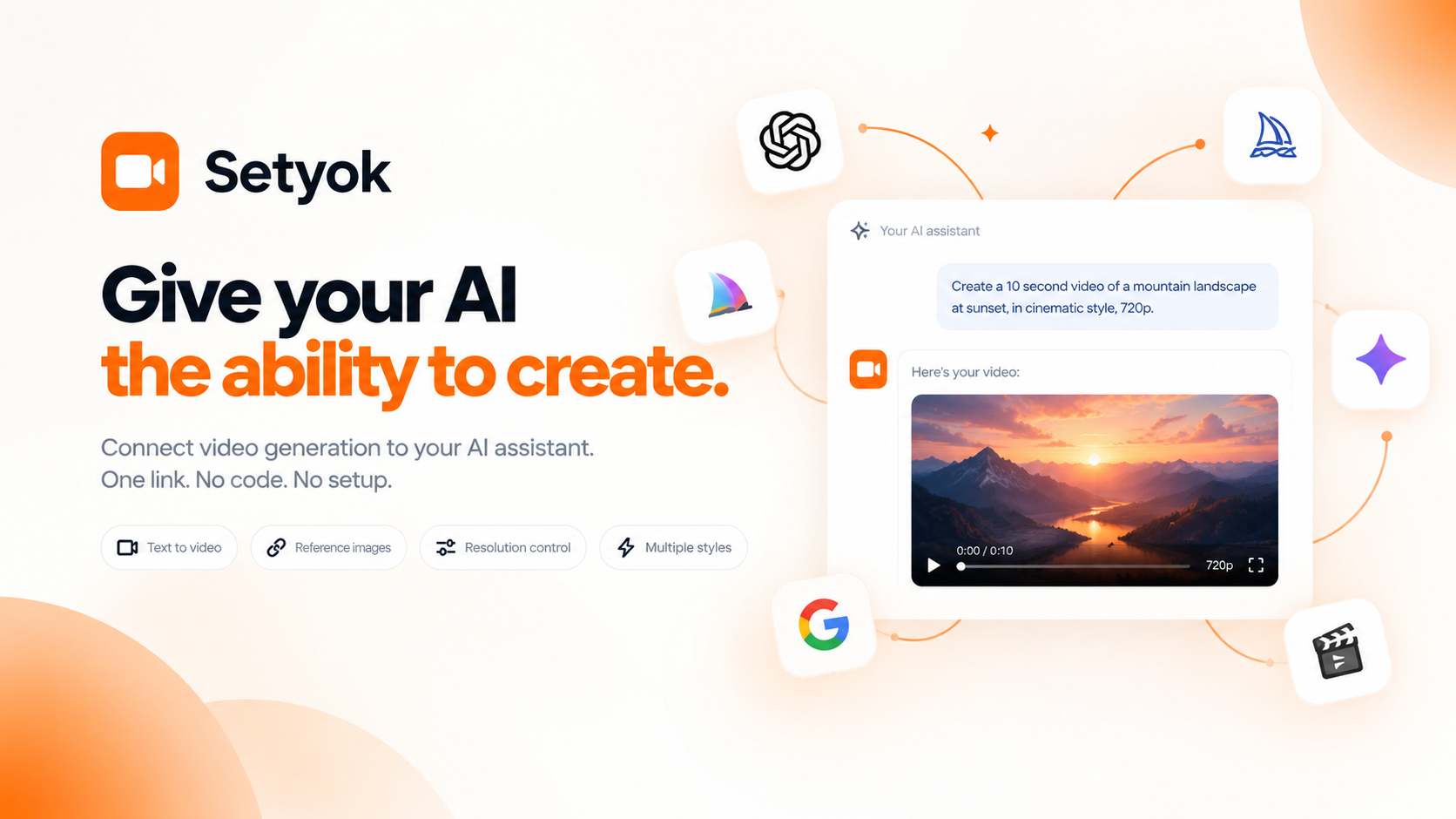
Add Video Generation to your AI assistant with one click. No code, no setup.
Or connect manually with any MCP-compatible assistant
https://setyok.com/video-gen/mcp
What it can do
Check Video Status
Check the status of any video generation job (Veo, Seedance, or Kling). Returns the video URL when completed. Call every 15-30 seconds (0 credits)
Generate Video (Veo 3.1 Lite)
Submit a video generation job with full control over resolution, duration, and frame references. Credits scale with duration at 90 credits per second.
Generate Video (Seedance 2.5)
Submit a video generation job using ByteDance Seedance 2.5. Supports 4–30s duration, multiple aspect ratios, first/last frame, image and video references. Credits scale with duration.
Check Kling Voice Status
Check the status of a Kling voice creation job. Returns the voice_id when ready. Call every 10 seconds after create_voice_kling (0 credits)
Create Kling Voice
Upload an audio or video sample to create a Kling voice ID for use with Kling video generation. Audio must be 5–30 seconds with clean, single-voice audio. Returns a voice_request_id poll check_voice_kling_status to get the voice_id.
Generate Video (Kling O3)
Generate a video using Kling O3 via fal.ai. Supports start/end frames, reference images, elements referenced by name in the prompt, and audio. Returns a job_id to poll with check_kling_video_status. Credits scale with duration.
Generate videos with your AI assistant using Google Veo 3.1
The Video Generation MCP tool gives your AI assistant the ability to produce videos on demand, directly inside your conversation. Describe a scene, pick a resolution and aspect ratio, and your AI submits the generation job, waits for the result, and returns a ready-to-use video link.
Powered by Google Veo 3.1, this tool supports text-to-video generation in 720p, 1080p, and 4K, as well as first-frame and last-frame guided generation for animating images into video.
What your AI can generate
- Text to video: describe any scene in natural language and get a matching video clip
- Aspect ratio control: 16:9 landscape or 9:16 vertical for any platform
- Resolution tiers: 720p, 1080p, or 4K
- First-frame animation: provide an image as the opening frame and the model animates from it
- Last-frame animation: provide an ending image and the model fills in the motion between
- Audio generation: add generated audio to your video
Real things you can do
- "Generate a 6-second cinematic clip of a lighthouse at sunset in 16:9"
- "Create a vertical product video of this sneaker on a clean white background"
- "Animate this product photo into a short video loop for Instagram"
- "Generate a 4K ambient nature scene for a meditation app background"
- "Create a 21:9 cinematic intro clip for a brand presentation"
Resolution levels and pricing
| Tool | Credits | Best for |
|---|---|---|
| generate_video_720p | 450 | Quick 4s clip from a text prompt |
| generate_video_1080p | 450 | Quality 4s clip at full HD |
| generate_video_from_image | 450 | Animate a reference image into a 4s clip |
| generate_video | dynamic | Full control over duration and resolution, 90cr/s |
| check_video_status | 0 | Polling a running job until it completes |
Compatible AI assistants
- Claude (claude.ai and Claude Desktop)
- ChatGPT with custom connectors
- Open WebUI
- Cursor, Windsurf, and AI-powered editors
- Any custom agent or workflow built on MCP
Getting started
- Copy your endpoint URL and token from this page
- Add the endpoint to your AI assistant under Settings or MCP servers
- Ask your AI to generate a video: "Generate a 6-second cinematic video of a forest at dawn in 16:9"
New Setyok accounts start with 100 free credits. Add credits from your billing page to start generating videos.
Add Video Generation to your AI assistant with one click. No code, no setup.
Or connect manually with any MCP-compatible assistant
https://setyok.com/video-gen/mcp
303
2
Other tools
Audio Generation
Convert text to natural-sounding speech using ElevenLabs. Choose from thousands of voices, clone your own voice, and get a ready-to-use audio link.
Image Generation
Generate stunning images from text prompts using GPT Image 2. Choose your quality level or generate with reference images for editing and style transfer.
Music Generation
Generate original music from a text prompt. Full songs with structure or short 30-second clips, describe what you want and your AI composes it.
Video Edit
Edit and transform existing videos with a text prompt. Change styles, apply effects, or reinterpret a scene using FLUX Video Edit.
Media Editor
Edit, convert, and transform audio and video files using FFmpeg. Stitch clips, overlay tracks, crop, cut, extract frames, detect silences, and more.
FAQ
Use cases
- Ask your AI to generate a product demo video from a written description
- Animate a product photo into a short video loop for social media
- Generate cinematic b-roll footage from a scene description
- Create a short video ad from a prompt and a product image as the first frame
- Have your AI produce a 16:9 explainer video clip for a presentation
- Generate a vertical video for Instagram or TikTok from a text brief
- Turn a brand mood board image into an animated video introduction
- Produce multiple short video variations to A/B test creative concepts
- Generate an ambient background video loop for a live event or website
- Create a storyboard clip by animating a concept sketch or reference image
Keywords